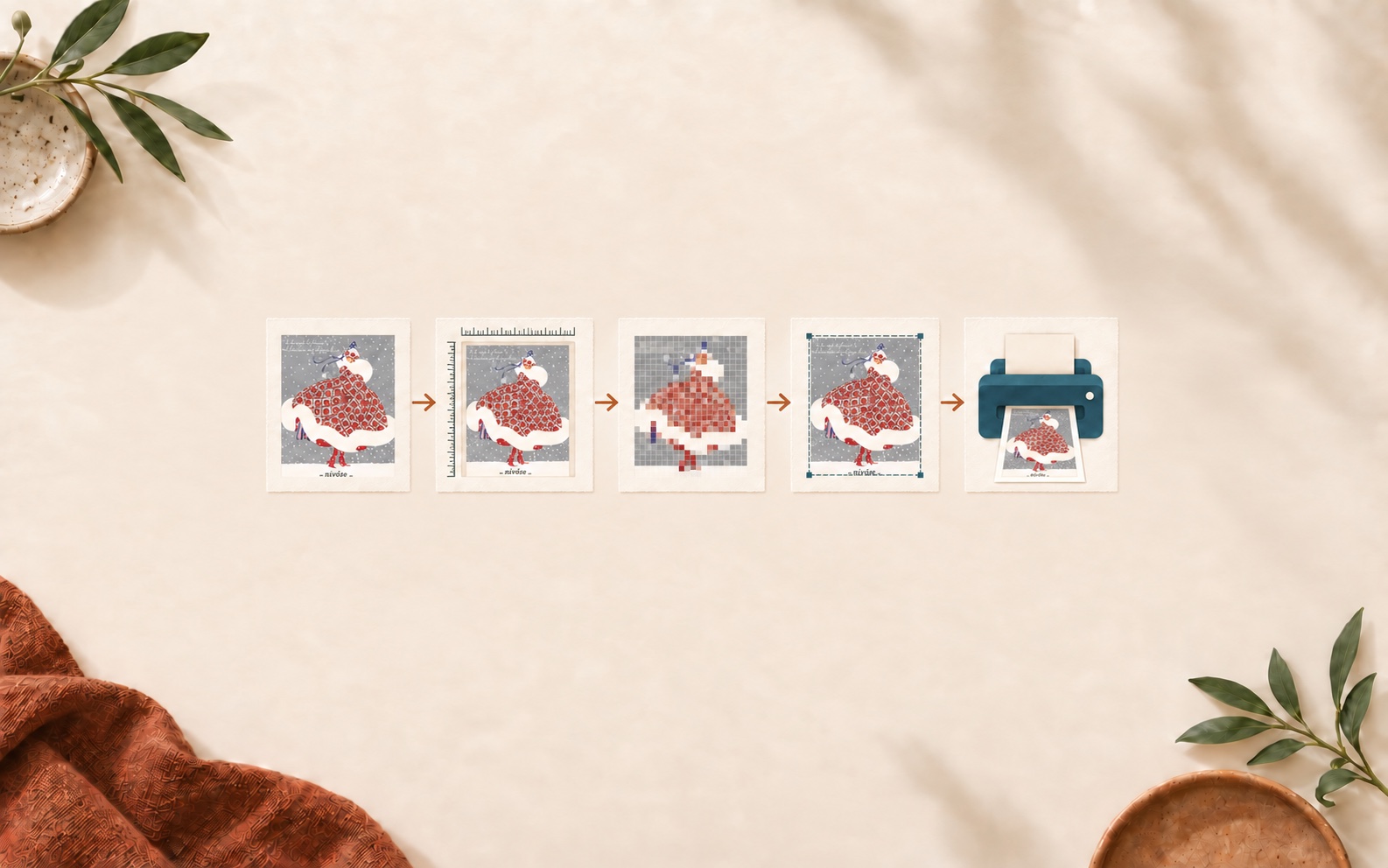
The short answer: before printing, confirm the exact file you selected, the intended output size, the aspect ratio, the pixel dimensions at that size, and whether the printer is set to preserve or crop the image. These checks help catch a wrong size, an unsuitable source file, or an unexpected crop before you commit paper and ink.
Do not assume every digital-download package contains the same files. Start with the included-file section on the product you purchased, then use the seven checks below.
Printable art preflight at a glance
Check
Pass
Stop and fix
File
The filename or package note matches the ratio and orientation you need
You are using a thumbnail, preview, or a different ratio
Output size
The finished width and height are written down
You know only the outside frame size
Aspect ratio
The file and visible frame opening have the same proportions
The printer preview removes important artwork
Pixels
The file has enough pixel dimensions for the intended output and service requirements
You are enlarging a small web preview
Print setting
You reviewed fit, fill, scale, and orientation
The software is making an automatic crop you did not choose
Handoff
The printer received the original selected file and clear instructions
The file was compressed through a messaging app or screenshot
Start with the correct file, then check size, pixels and the intended crop before printing.
1. Choose the file from the actual package
Open the download folder and compare the filenames with the product listing. A prepared package may include a master JPG, several ratio families, ISO paper proportions, or a PDF, but the combination varies by product.
For example, the Bill Traylor Americana digital download currently lists a master JPG plus several square, portrait, landscape, and ISO options. The French Fashion digital download currently lists a broad ratio set and a print-ready PDF. By contrast, the Wyoming Map digital download has a more focused landscape package. Read the listing you purchased instead of borrowing instructions from another artwork.
2. Write down the finished output size
Use the visible artwork opening, not only the outside edge of the frame. A mat can change the opening substantially. Record width, height, and orientation before choosing the file.
A 12 × 18 inch opening is 2:3. An 8 × 10 inch opening is 4:5. If the file and opening do not share the same proportions, the result needs a deliberate crop or border. Stretching the image changes the artwork and is not a substitute for choosing the right ratio.
4. Check pixels at the intended size
Pixel dimensions and intended print size work together. Adobe's printed image resolution guide explains that resolution describes how densely the existing pixels are used when printed; changing the resolution value without resampling does not create new image data.
Use this transparent calculation:
pixels ÷ intended inches = pixels per inch (PPI)
A 2400 × 3000 pixel file printed at 8 × 10 inches uses 300 pixels per inch in both directions. The same file printed at 16 × 20 inches uses 150 pixels per inch. That does not automatically decide whether the print is acceptable—artwork detail, viewing distance, paper, printer, and service requirements also matter—but it tells you what data the file actually contains.
Look at the printer preview at the final paper size. Apple's Preview printing guide distinguishes between printing the entire image and filling the entire paper: filling may crop the image to match the paper proportions.
Use a fit or entire-image option when preserving the full composition matters.
Use fill only when you have inspected and accepted the displayed crop.
Check portrait versus landscape orientation.
Decide whether any white border will be trimmed, shown, or covered by a mat.
6. Send the selected original file
Upload or transfer the chosen package file directly. Avoid screenshots and messaging-app copies, which can change dimensions or compression. Keep the original download unchanged and make a working copy if you need to rename or test it.
If you are choosing between home and professional production, compare the tradeoffs in Home Printer or Print Shop?
7. Give the printer a complete handoff
Before approving the order, tell the printer or service:
the exact finished width and height;
the required orientation;
whether to preserve the full image or use the crop you approved;
whether a border should remain;
the paper option you selected; and
that you want to review the final crop preview before production.
Final one-minute check
I selected the file from this product's package.
I know the visible frame or paper dimensions.
The file ratio matches, or I approved the crop or border.
I checked the pixel dimensions at the intended output size.
The printer preview shows the orientation and full composition I expect.
I sent the original selected file, not a screenshot.
I reviewed the final proof or crop preview.
If you are still choosing artwork, browse the digital download collection and compare each listing's included-file section before selecting a frame.
Choose paper, finish, mat, and frame combinations for printable art by considering image detail, contrast, room light, handling, and the intended finished size.